On this page
- Adding HLA Support for More Analyzers
- Writing an HLA
- State Management
- An example set of states follows:
- Instruction Set Lookup Table
- Example - Writing an HLA to search for a value
- Example Data
- Remove Unneeded Code
- Understanding the Input Frames
- Updating `decode()` to search for "H" or "l"
- Replace the hardcoded search with a setting
- Updating the Display String
- Using Time
HLA - Analyzer Frame Format
Python High Level Analyzers allow users to write custom code that processes the output of an analyzer. The below list of pre-installed low level analyzers can be immediately used with high level analyzers (HLAs).
Adding HLA Support for More Analyzers#
We've released documentation on our FrameV2 API below, which can be used to add HLA support for any low level analyzer that is not listed above, including custom analyzers that were created using our Protocol Analyzer SDK.
FrameV2 HLA Support - Analyzer SDK
Writing an HLA#
In order to write a high level analyzer, the data format produced by the connected source analyzer must be understood.
For example, a high level analyzer which consumes serial data needs to understand the serial analyzer output format in order to extract bytes, and this code differs from the code required to extract data bytes from CAN data.
Reading Serial Data
def decode(self, frame: AnalyzerFrame):
        print(frame.data['data'])
Reading CAN Data
def decode(self, frame: AnalyzerFrame):
        if frame.type == 'identifier_field':
            print(frame.data['identifier'])
        elif frame.type == 'data_field':
            print(frame.data['data'])
        elif frame.type == 'crc_field':
            print(frame.data['crc'])
To write a Python high level analyzer for a specific input analyzer, navigate to the section for that analyzer.
There is one page for each analyzer that is compatible with python HLAs. Each analyzer produces one or more frame types. These frame types have string names and will be in the type member of the frame class.
Each frame type may have data properties. The documentation page will list the data properties for that frame type, along with the data type and a description. These can be accessed from the frame.data dictionary.
Here is an example of how you might handle different frame types from I2C:
def decode(self, frame):
        if frame.type == 'address':
            if frame.data['read'] == True:
                print('read from ' + str(frame.data['address'][0]))
            else:
                print('write to ' + str(frame.data['address'][0]))
        elif frame.type == 'data':
            print(frame.data['data'][0])
        elif frame.type == 'start':
            print('I2C start condition')
        elif frame.type == 'stop':
            print('I2C stop condition')
State Management#
In some cases, such as I2C HLA programming, each frame contains only a single byte. A state machine is needed to keep track of the bytes as they are received so that they can be properly interpreted, specifically if multiple control modes or multi-byte instructions are required. For example, the first byte of the data payload is often the slave address, followed by a control byte. The control byte determines whether follow-on bytes should be interpreted as commands or memory register data. The following example provides some recommendations for state management.
An example set of states follows:#
- Idle: Waiting for I2C transaction to begin
- Next State: waiting for Start
- Start: I2C start condition signals the beginning of the transaction
- Next State: waiting for the expected slave device Address
- I2C Slave Address: Typically a 7-bit device address is read, direction bit (read/write) is determined
- Next State: waiting for control byte
- Note that the I2C LLA automatically shifts the address back right by 1 bit to recover the original 7-bit address.
- I2C Control Byte: When used, it often determines how follow-on bytes should be interpreted (commands or data)
- Next State: waiting for data
- Data: Data can be supplied as one or more bytes
- The I2C LLA (low level analyzer) pass data bytes, one byte at a time to the HLA for decoding.
- If a multi-byte instruction is received, tracking of the previous byte(s) may be required to interpret the current byte correctly.
- Next State: Loop to receive next Data byte until Stop is received
- Stop: I2C stop condition signals the end of the transaction
- Next State: return to Idle
Instruction Set Lookup Table#
Developing an instruction set lookup table is a pattern that allows you to build an analyzer that interprets received data into human-readable annotations. At a minimum, the instruction opcode, name, and number of parameters are needed to build out the state machine.
instructions = {
    0x81: {"name": "Set Contrast Control", "param_description": "Contrast values (0-255)", "params": 1},
    0xA4: {"name": "Entire Display OFF", "param_description": "", "params": 0},
    0xA5: {"name": "Entire Display ON", "param_description": "", "params": 0}
}
Example - Writing an HLA to search for a value#
Now that we've gone over the different parts of an HLA, we will be updating our example HLA to search for a value from an Async Serial analyzer.
Example Data#
In the Extensions Quickstart you should have downloaded and opened a capture of i2c data. For this quickstart we will be using a capture of Async Serial data that repeats the message "Hello Saleae".
Remove Unneeded Code#
To start, let's remove most of the code from the example HLA, and replace the settings with a single search_for setting, which we will be using later.
from saleae.analyzers import HighLevelAnalyzer, AnalyzerFrame, StringSetting

class MyHla(HighLevelAnalyzer):
    search_for = StringSetting()
    result_types = {
        'mytype': {
            'format': 'Output type: {{type}}, Input type: {{data.input_type}}'
        }
    }

    def __init__(self):
        pass

    def decode(self, frame: AnalyzerFrame):
        return AnalyzerFrame('mytype', frame.start_time, frame.end_time, {
            'input_type': frame.type
        })
If you open the example data from above and add this analyzer, selecting the Async Serial analyzer as input, you should see the following when zooming in:

Our HLA (top) is outputting a frame for every frame from the input analyzer (bottom), and displaying their types.
Understanding the Input Frames#
The goal is to search for a message within the input analyzer, but first we need to understand what frames the input analyzer (Async Serial in this case) produces so we can know what frames will be passed into the decode(frame: AnalyzerFrame) function.
The frame formats are documented under Analyzer Frame Types, where we can find Async Serial.
The Async Serial output is simple - it only outputs one frame type, data, with 3 fields: data , error, and address. The serial data we are looking at will not be configured to produce frames with the address field, so we can ignore that.
To recap, the decode(frame) function in our HLA will be called once for each frame from the Async Serial analyzer, where:
frame.typewill always bedataframe.data['data']will be a `bytes` object with the data for that frameframe.data['error']will be set if there was an error
Updating `decode()` to search for "H" or "l"#
Now that we we understand the input data, let's update our HLA to search for the character "H".
def decode(self, frame: AnalyzerFrame):
        # The `data` field only contains one byte
        try:
            ch = frame.data['data'].decode('ascii')
        except:
            # Not an ASCII character
            return

        # If ch is 'H' or 'l', output a frame
        if ch in 'Hl':
            return AnalyzerFrame('mytype', frame.start_time, frame.end_time, {
                'input_type': frame.type
            })
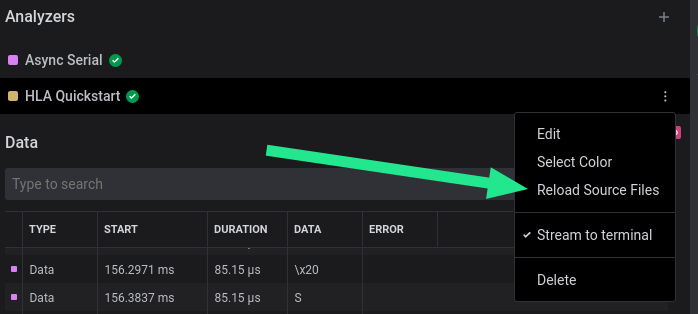
After applying the changes, you can open the menu for your HLA and select Reload Source Files to reload your HLA:
You should now only see HLA frames where the Async Serial frame is an H or l:

Replace the hardcoded search with a setting#
Now that we can search for characters, it would be much more flexible to allow the user to choose the characters to search for - this is where our search_for setting that we added earlier comes in.
class MyHla(HighLevelAnalyzer):
    search_for = StringSetting()
Instead of using the hardcoded 'Hl', let's replace that with the value of search_for:
# In decode()
# If the character matches the one we are searching for, output a new frame
if ch in self.search_for:
    return AnalyzerFrame('mytype', frame.start_time, frame.end_time, {
        'input_type': frame.type
    })
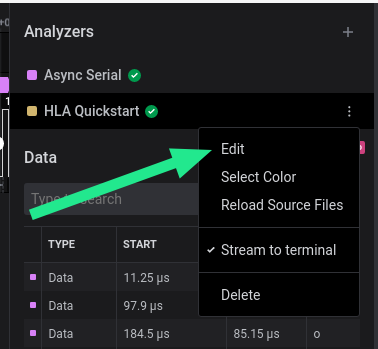
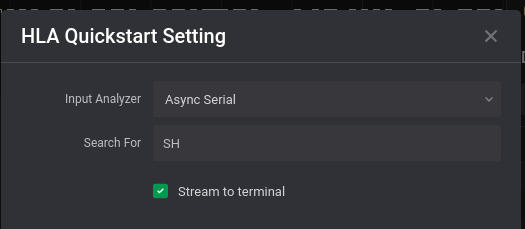
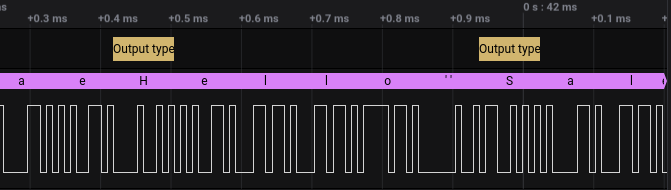
Now if you can specify the characters to search for in your HLA settings:
Updating the Display String#
To update the display string shown in the analyzer bubbles, the format string in result_types variable will need to be updated. 'mytype' will also be updated to 'match' to better represent that the frame represents a matched character.
result_types = {
    'match': {
        'format': 'Found: {{data.char}}'
    }
}
And in decode(): we need to update the data in AnalyzerFrame to include 'char', and update the frame 'type' to 'match'.
# If the character matches the one we are searching for, output a new frame
if ch in self.search_for:
    return AnalyzerFrame('match', frame.start_time, frame.end_time, {
        'char': ch
    })
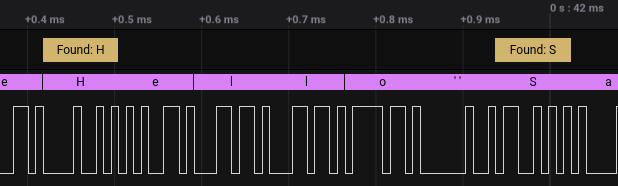
After reloading your HLA you should see the new display strings:
Using Time#
AnalyzerFrames include a start_time and end_time. These get passed as the second and third parameter of AnalyzerFrame, and can be used to control the time span of a frame. Let's use it to fill in the gaps between the matching frames.
Let's add a __init__() to initialize the 2 time variables we will use to track the span of time that doesn't have a match:
def __init__(self):
    self.no_match_start_time = None
    self.no_match_end_time = None
And update decode() to track these variables:
# If the character matches the one we are searching for, output a new frame
if ch in self.search_for:
    frames = []

    # If we had a region of no matches, output a frame for it
    if self.no_match_start_time is not None and self.no_match_end_time is not None:
        frames.append(AnalyzerFrame(
            'nomatch', self.no_match_start_time, self.no_match_end_time, {}))

        # Reset match start/end variables
        self.no_match_start_time = None
        self.no_match_end_time = None

    frames.append(AnalyzerFrame('match', frame.start_time, frame.end_time, {
        'char': ch
    }))

    return frames
else:
    # This frame doesn't match, so let's track when it began, and when it might end
    if self.no_match_start_time is None:
        self.no_match_start_time = frame.start_time
    self.no_match_end_time = frame.end_time
And lastly, add an entry in result_types for our new AnalyzerFrame type 'nomatch':
result_types = {
        'match': {
            'format': 'Match: {{data.char}}'
        },
        'nomatch': {
            'format': 'No Match'
        }
    }
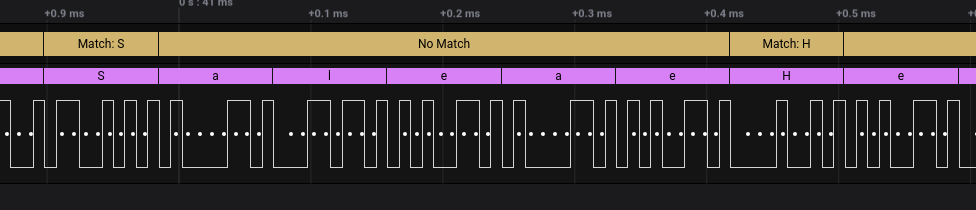
The final output after reloading: